BIGVU Teleprompter & Captions
- 4.5
- Rating
- 5.00M
- Installs
- Free
- Price

 Analysis by App-foxy
I approached BIGVU Teleprompter & Captions as a practical tool for recording spoken video rather than as a full replacement for a desktop editing suite. It sits in the video players and editors category, but its real identity is closer to a mobile speaking assistant: it helps me prepare words, deliver them to camera, and polish the result with features such as captions, beauty effects, avatars, music creation, and AI-focused editing tools.
That combination makes the app appealing to anyone who records tutorials, short lessons, product demonstrations, social clips, interviews, or personal updates. I especially like the idea of keeping the script and camera workflow together, because the usual alternative is juggling a notes app, a camera app, and a separate editor. The experience is not frictionless in every situation, though. Connectivity can influence how smoothly the more advanced parts behave, and people who only want quick trimming may find the teleprompter-centered design more than they need.
How the teleprompter workflow feels on a phone
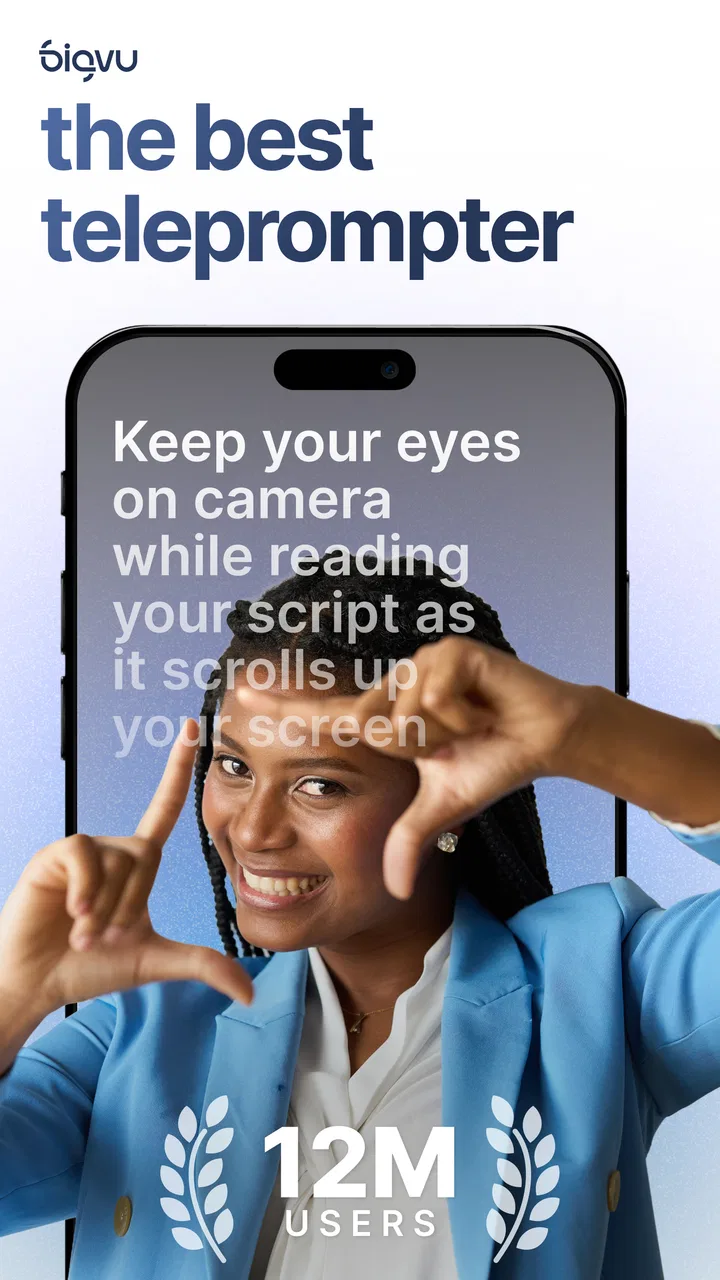
The central attraction is the teleprompter format. Instead of trying to memorize a script or repeatedly glance down at notes, I can keep the words close to the lens and speak in a more consistent rhythm. That matters for instructional videos, where missing one step can make the final recording confusing, and for promotional clips, where a short message needs to sound deliberate without becoming stiff.
You May Also Like

 Blood Strike: 2.5 Anniversary
Blood Strike’s Loadouts Turn Every Drop Into a Tactical Gamble
A close look at Blood Strike’s custom loadouts: how fast access to signature weapons reshapes its battle royale rhythm, rewards preparation, and narrows the gap between fights.

 Pandora - Music & Podcasts
Pandora’s Music Is Easy to Start, but Harder to Recover
Pandora’s strength is its low-effort path from a seed to a station. Its weak spot is how much confidence it asks you to place in connection, setup, and quiet recovery.

 8 Ball Pool
 Is Built on Rivalries, Rematches, and Routine
A close look at the rivalries, rematches, shared routines, and unanswered safety questions that turn a quick pool match into a persistent mobile community.

 Samsung Music
’s Quiet Strength Is Playing What You Already Own
Its reach comes less from spectacle than from dependable access to a personal library. That simplicity is both the app’s strongest retention engine and its ceiling.

 AccuWeather: Weather Radar
AccuWeather Review: A Quick, Clear Forecast for Everyday Decisions
For everyday plans, the best forecast is the one you can understand quickly. AccuWeather makes rain timing, radar, and local conditions easy to act on, with a few trade-offs.

 Hill Climb Racing
Why Hill Climb Racing Still Turns Crashes Into One More Run
A tiny car, a bumpy hill and one more upgrade: Hill Climb Racing keeps resurfacing because its simple chaos makes every near-miss feel personal.
More From Our News Desk



A useful way to work is to write the script in short spoken phrases rather than long paragraphs. I would leave a little breathing room between ideas, mark places where a pause feels natural, and put the most important sentence near the beginning. A teleprompter can help me remember what to say, but it cannot fix a script that is difficult to speak. Short lines also make it easier to recover if I lose my place.
The phone format is a strength when I am recording in an ordinary room, at a desk, or while holding the device for a casual update. It is less comfortable when I need a wide composition, several people in the frame, or a carefully controlled camera setup. The app is designed around one person addressing the lens, so it feels most natural for presenter-led content rather than cinematic production.
I also found that reading speed deserves attention. Moving text too quickly encourages rushed delivery, while text that crawls across the screen can make a natural speaker sound hesitant. I would begin with a conservative pace, record a short test, and then adjust rather than committing to a long take immediately. This small rehearsal saves time and produces better results than trying to correct every problem in editing.
Where captions add real value
Automatic captions are useful beyond accessibility. They give viewers a way to follow a video in quiet public places, and they make spoken content easier to scan before someone decides to watch the whole clip. For me, the biggest benefit is editing awareness: seeing the spoken words alongside the video helps reveal repeated phrases, awkward pauses, and sections that could be shortened.
Captions still need a careful review. Names, technical terms, accents, background noise, and fast speech can all create mistakes. I would never publish an important tutorial immediately after automatic transcription. A better workflow is to record in a quiet space, speak punctuation through natural pauses, inspect the caption timing, and correct the words that carry the meaning of the lesson. The feature saves work, but it does not remove the responsibility to proofread.
There is also a creative trade-off. Prominent captions can make a short video easier to follow, but too much text can compete with the speaker and any visual demonstration. I prefer using captions to reinforce the message, not to cover the object being shown. If the video depends on small details, I would leave enough clear space around the subject before applying a caption style.
AI tools, filters, avatars, and music
The app’s broader toolset reaches beyond a basic teleprompter. Its store summary highlights AI video editing, beauty filters, avatars, and a music generator, which gives creators several ways to shape a finished clip without moving immediately to another application. These additions are most useful when I need a presentable result quickly and do not want to build a complicated editing timeline.
Beauty filters should be used lightly. A subtle adjustment can help a presenter feel more comfortable under harsh indoor lighting, but strong smoothing may make the image look artificial. I would treat these effects as finishing touches rather than a substitute for better light, a clean background, or a stable camera position.
Avatars can be valuable when I want a presentation style that does not rely entirely on appearing on camera. They may also help when a message needs a repeatable visual presenter. However, an avatar is not automatically better than a real person. For advice, demonstrations, and personal storytelling, viewers often benefit from the natural expression and credibility of the speaker. I would choose the avatar route for consistency or convenience, not simply because it is available.
The music generator is another convenience feature, especially for short clips that need a background layer. The important practical decision is balance. Music that is too loud makes captions and speech feel less clear, while music that is barely audible may not contribute much. I would create the spoken track first, then add music only after checking that every important sentence remains easy to understand.
Connectivity changes more than the editing screen
The network matters most when I use features that rely on processing beyond simple recording. Generating captions, working with AI-assisted tools, or creating media can feel different from recording a straightforward clip, because the app may need time to send information, process it, and return a result. I would plan those steps when the connection is stable rather than waiting until the moment I need to publish.
This is especially relevant for a mobile creator working from a café, a train station, a hotel, or an event venue. A strong signal can make the workflow feel continuous, while a weak or changing connection can turn a quick task into repeated waiting. The practical lesson is to separate capture from finishing whenever possible: record the material first, then process captions or other enhancements when the network is dependable.
I would also avoid assuming that a successful recording means every later tool will be ready immediately. Camera capture and cloud-assisted processing are different moments in the workflow. If I am preparing content for a scheduled post, I would leave time for caption generation, corrections, and export rather than treating the final tap as instant.
For data-conscious use, the most sensible approach is to do a short test before processing a long recording. A brief sample can reveal whether the connection is stable and whether the captions recognize my voice well enough to justify continuing. This is more efficient than uploading a lengthy take only to discover that the room noise or delivery style needs changing.
I would be careful with mobile data during travel. Large video files can consume a noticeable amount of a plan, and repeated attempts after a failed process may be wasteful. When possible, I would prepare scripts and rehearse before starting the online-heavy part, keep the final take concise, and reserve larger processing tasks for a trusted connection. That is not a criticism unique to this app; it is simply an important part of using a mobile video editor responsibly.
A realistic everyday recording session
Imagine I need to publish a two-minute explanation of a software feature before leaving for work. I would first write a compact script with one idea per paragraph, then rehearse it aloud without recording. After opening the teleprompter, I would position the phone so my eyes stay close to the lens, record a short opening, and check whether the pace feels conversational.
Once the full take is acceptable, I would add captions and inspect the technical words carefully. If I wanted a more polished appearance, I might apply a restrained beauty effect, but I would avoid changing the image so much that it distracts from the explanation. A light music layer could work for an introduction or closing, yet I would keep the instructional section focused on speech.
If the connection became unreliable during caption processing, I would not immediately record the whole presentation again. I would preserve the original take, move to a stronger connection, and retry the processing step. That separation is one of the most useful habits with a mobile creator app: capture is valuable work, so a network problem should not automatically force me to start over.
For a creator who publishes frequently, this workflow can become a repeatable routine. The teleprompter reduces memory pressure, captions make the result more accessible, and the built-in creative tools reduce app switching. The trade-off is that I still need to supervise every stage. Automation accelerates the work, but it does not decide whether a sentence is accurate, whether a filter looks natural, or whether the final pacing suits the audience.
What happens when a session goes wrong
The most common problems are likely to be practical rather than dramatic: the script scrolls at the wrong speed, the speaker loses their place, captions mishear a phrase, or processing takes longer than expected. My preferred recovery method is incremental. I would fix one variable at a time instead of changing the script, camera position, filter, and caption settings together.
If I stumble while reading, I would pause briefly and restart the sentence rather than stopping the entire project. That creates a clean point to locate during review. If a caption is wrong, I would correct the text without assuming the video itself must be rerecorded. If the delivery sounds rushed, I would slow the teleprompter and record a shorter test before attempting another full take.
Connectivity failures deserve their own precaution. I would keep the original recording until the edited version has been checked, avoid deleting a good take simply because an online step failed, and give processing time before repeating a request. A patient workflow is particularly important when using AI-assisted features, because repeated taps can create confusion about which version is current.
Another useful habit is to make the first sentence easy to repeat. Openings are often the part I rerecord most, and a simple first line gives me a clean entry point. I would also finish with a short closing rather than improvising after the main message. This makes the project easier to trim and reduces the amount of caption timing that needs attention.
Who should use it, and who should look elsewhere?
I think the app is a strong fit for people who speak to camera and want help staying on script. Teachers, coaches, small business owners, reviewers, consultants, and social creators can all benefit from a workflow that combines prompting and presentation. It is also useful for someone who feels comfortable explaining ideas but becomes distracted when trying to remember exact wording.
The app is less convincing for a person who only needs basic cutting, cropping, or joining of clips. A conventional lightweight editor may feel faster if the task is simply removing the beginning and end of a recording. Likewise, a desktop editor is usually the better choice for multi-track projects, detailed sound mixing, complex transitions, or precise color work.
It may also be the wrong choice for creators whose style depends on spontaneous movement, changing camera angles, or several participants interacting naturally. The teleprompter approach favors planned delivery. That is an advantage when structure matters, but it can make an improvised format feel overly controlled if I rely on the script too heavily.
The app is free to start, with optional purchases ranging from less than a dollar to amounts reaching $139.99 per item. I would explore the basic workflow before paying for anything, then decide whether the time saved by advanced tools justifies the cost for my publishing routine. Someone who records only occasionally may not gain enough from premium-oriented features, while a frequent presenter could value the convenience.
It is available for Everyone, which makes it approachable for a broad audience, and it runs on Android versions beginning with 8.0. The developer is BIGVU AI Eye Contact & Video Subtitles. Its current version is 2.75.1, and the app has been available since March 22, 2016, so this is not a newly appeared experiment in the category.
My final view after weighing convenience against control
The app’s public reception reflects solid interest, with an average of 4.2 from around 61 thousand ratings and more than 5 million installs. I can understand that appeal: putting a teleprompter, caption workflow, and several presentation tools in one mobile app solves a real problem for people who publish spoken videos regularly.
My recommendation depends on the kind of creator you are. If you want to explain something clearly, stay close to a prepared script, and finish a polished mobile video without assembling several separate tools, I would give it a serious try. The best results come from treating it as a guided production workflow, not a magic button: rehearse, record a short test, check captions, use visual effects with restraint, and process demanding features when the connection is reliable.
If you need a traditional editing timeline, elaborate sound design, or complete freedom from scripted delivery, another editor will probably suit you better. For everyone in between, the app offers a practical middle ground. Its biggest strength is not any single AI effect; it is the way the teleprompter keeps the spoken performance at the center of mobile video creation.
After using it with that expectation, I see it as a focused companion for presenters rather than an all-purpose studio. It can make recording less stressful and captions easier to manage, but it rewards preparation and patience. For my own short, presenter-led videos, that balance makes it worth keeping available when I need to turn a script into a clear clip from a phone.
FAQs for BIGVU Teleprompter & Captions
01What is BIGVU Teleprompter & Captions and how does it work?
BIGVU Teleprompter & Captions is an app designed for content creators, journalists, and anyone needing to deliver scripts smoothly while looking directly at the camera. It functions by displaying text on your screen as you record, allowing you to maintain eye contact with your audience while reading your script, ensuring a professional and polished presentation.
02Is BIGVU Teleprompter & Captions suitable for beginners?
Yes, BIGVU is user-friendly and suitable for beginners. The app provides intuitive controls and a simple interface, making it easy for users to adjust the scrolling speed, font size, and other settings. Additionally, it offers tutorials and support to help new users quickly get started and make the most of its features.
03Can I customize the text and captions in BIGVU?
Absolutely. BIGVU allows you to customize your scripts and captions extensively. You can adjust the font size, color, and scrolling speed to suit your preferences. Furthermore, the app supports importing scripts from various formats, enabling seamless integration with your existing content creation process.
04Does BIGVU offer any video editing features?
Yes, BIGVU includes basic video editing features, such as trimming, adding music, and incorporating captions. These tools allow you to enhance your videos directly within the app, saving time and effort by not needing to switch between multiple applications. This makes it convenient for creating polished, ready-to-share content.
05Is BIGVU compatible with both Android and iOS devices?
Yes, BIGVU is compatible with both Android and iOS platforms. This cross-platform availability ensures that users can access and use the app regardless of their device type, providing flexibility and convenience for creators who may switch between different devices during their content creation process.
Pros
- User-friendly interface for easy navigation.
- Customizable text speed and size options.
- Automatic captions for videos improve accessibility.
- Cloud storage integration for easy access.
- Multilingual support for diverse users.
Cons
- Limited free version features.
- Occasional sync issues with cloud.
- Requires internet for full functionality.
- In-app purchases can be pricey.
- No offline editing available.

BIGVU Teleprompter & Captions
Gallery